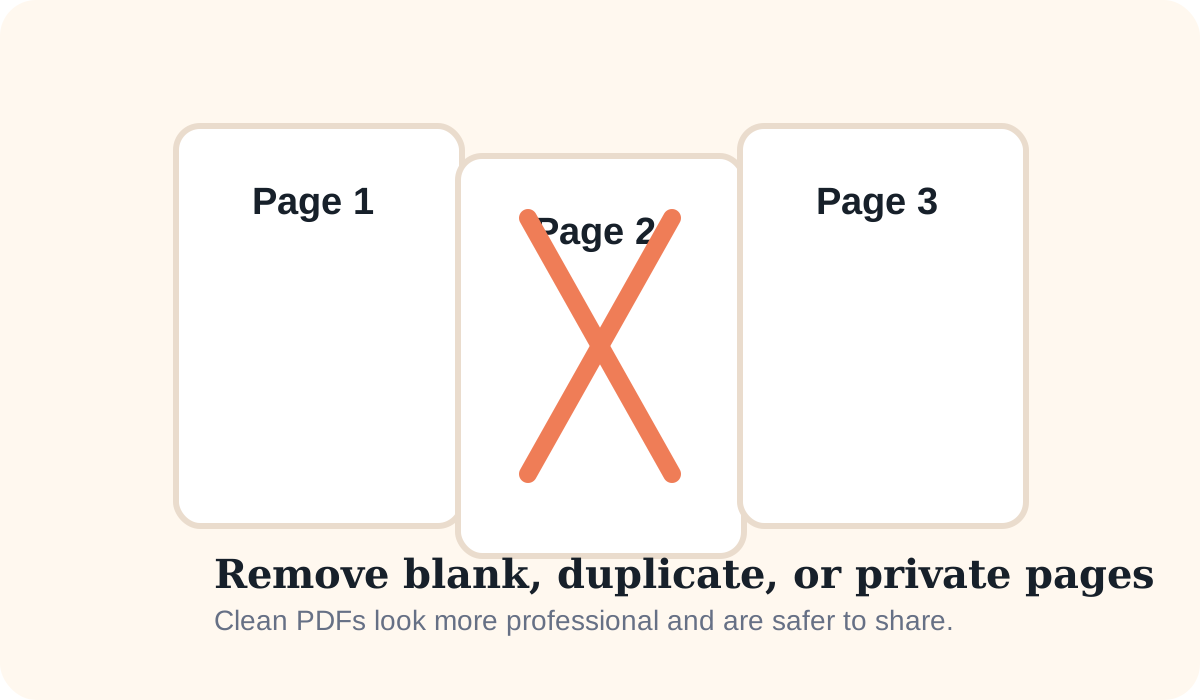
Removing extra pages is one of the simplest ways to improve a document. Many PDFs end up with repeated scans, unused cover pages, blank sheets, or personal notes that should not be forwarded.
Pages people often delete before sharing
- Blank scanner pages
- Duplicate pages from repeated uploads
- Rough notes or draft pages
- Internal pages not meant for the final reader
- Extra image sheets added during export
Why this matters
A smaller, cleaner PDF is easier to read and can look more professional. It can also reduce the risk of sending the wrong content to a client, team member, or form portal.
Good workflow for page cleanup
- Review every page in order before sharing.
- Mark blank, duplicated, or private pages.
- Remove those pages in a PDF editor.
- Save a fresh copy with a clear filename.
- Check the final page order once more before sending.
How HighConvert helps
HighConvert currently focuses on exporting PDF pages to images and combining images into PDFs. That makes it useful when you want to rebuild a clean PDF from selected pages or turn chosen document pages into JPG or PNG files for review.