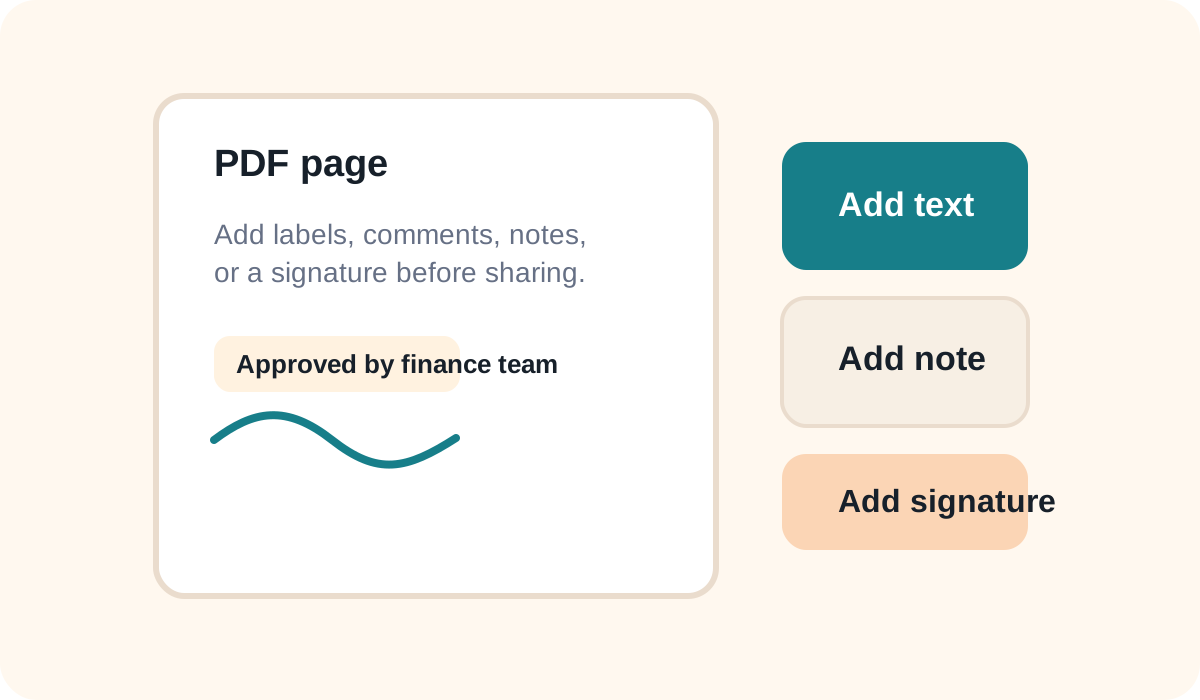
Some PDFs are made from editable text, while others are basically images stored inside a PDF page. That difference matters because writing on an image-based PDF usually means adding overlays, notes, or new content layers rather than changing the original image directly.
Common PDF edits people need
- Add a typed note or label
- Insert a name, date, or short comment
- Mark a page for review
- Add a simple signature or approval note
- Remove extra pages before sending
Text-based vs image-based PDFs
If the PDF came from a document editor, parts of it may remain editable. If it came from a scan, screenshot, or image export, it is usually easier to annotate or rebuild than to edit the original contents directly.
Safe workflow before sharing
- Keep a copy of the original PDF.
- Decide whether you need full editing, notes, or page cleanup.
- Add text, labels, or signatures carefully.
- Review every page after editing.
- Save a final shareable copy with a clear file name.
Where HighConvert fits
HighConvert is useful when you need to turn PDF pages into images for editing, then rebuild a clean PDF from updated image pages. This is especially helpful for scans, visual forms, posters, screenshots, and simple layout-based documents.