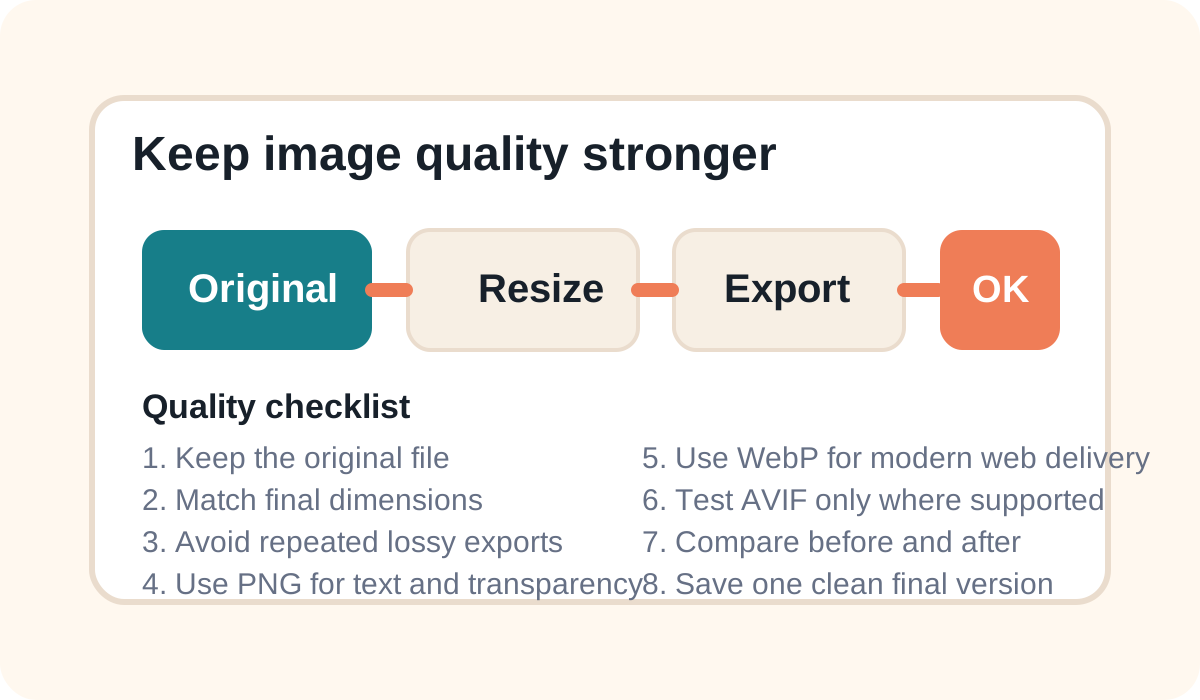
If you want sharper images, smaller files, and better-looking exports, you need a workflow that protects quality from the start. The most common mistakes are exporting too many times, resizing without planning the target size, or picking the wrong format for the type of image.
Five quality rules that work almost everywhere
- Keep an untouched original file.
- Resize only when you know the final dimensions you need.
- Avoid repeated JPG-to-JPG or WebP-to-WebP exports.
- Use PNG for transparency and sharp interface graphics.
- Use WebP or AVIF when the goal is smaller web delivery.
Photos vs graphics
Photos often hide compression better than text-heavy graphics. That means a JPG or WebP export may look fine for a portrait or travel photo, but a screenshot with small text can blur quickly. For UI screenshots, diagrams, and sharp lines, PNG is often safer.
How dimensions affect quality
Exporting an image at a larger size than needed increases file size without helping the viewer. Exporting too small can make the image soft or pixelated when stretched. Try to match the actual destination size, whether that is a website image area, a social media card, or a document preview.
Format-specific advice
- JPG: Great for photos, but watch for repeated compression.
- PNG: Best for transparency, text, and crisp edges.
- WebP: A strong all-rounder for web use.
- AVIF: Excellent compression, but always test compatibility.
- PDF image exports: Use high render quality if you need sharp page previews.
What to do in HighConvert
Upload the original, choose the output based on the destination, compare the before and after preview, and keep quality higher when the image matters more than file size. That simple process avoids most visible quality loss.